Install the App
The platform is available as a Progressive Web App (PWA) — you can install it on your phone or tablet and open it like a native app, without going through an app store.
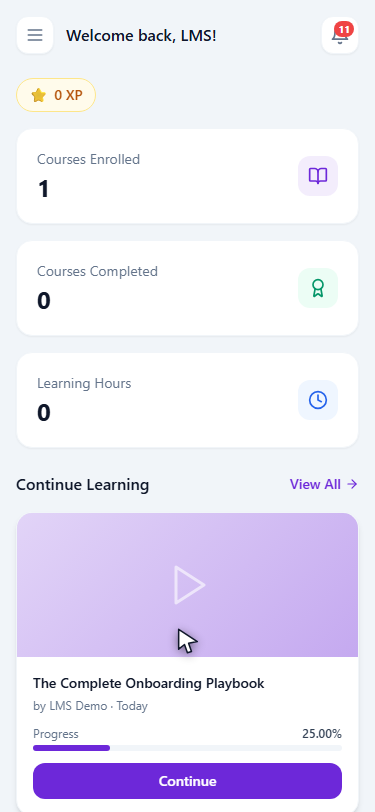
You may also see an install prompt appear directly inside the app inviting you to add it to your home screen — if so, you can follow that instead of the manual steps below.
Install on Android (Chrome)
- Open your LMS URL in Chrome on your Android device
- Tap the menu (three dots) in the top-right corner
- Tap Add to Home Screen
- Confirm the name and tap Add
The app icon appears on your home screen. Tap it to open the platform in a full-screen view without the browser address bar.
On some Android devices, Chrome shows an "Install app" banner at the bottom of the screen automatically. Tap Install to skip the menu steps above.
Install on iOS (Safari)
- Open your LMS URL in Safari on your iPhone or iPad
- Tap the Share button (the box with an arrow pointing up) at the bottom of the screen
- Scroll down and tap Add to Home Screen
- Confirm the name and tap Add
The app icon appears on your home screen.
On iOS, the PWA must be installed from Safari. Chrome and other browsers on iOS do not support the Add to Home Screen feature for PWAs.
What works offline
The app uses standard PWA caching (via next-pwa's default configuration) rather than a hand-built, lesson-aware offline mode — there's no guarantee that a specific lesson's content will be available offline, only that pages and data you've already loaded are more likely to load faster or work without a fresh connection. Don't rely on this for planned offline study; anything that writes data (enrolling, submitting a quiz or assignment, posting in a forum) always needs an active connection.
Updating the app
The PWA updates automatically in the background the next time you open it with an internet connection — no manual update step, and no update prompt to respond to.
Troubleshooting
The install option does not appear:
- Make sure you are using Chrome (Android) or Safari (iOS)
- Ensure you are visiting the site over HTTPS (the URL starts with
https://) - Try clearing your browser cache and reloading the page
- On Android: Chrome requires you to have visited the site at least twice before showing the install prompt in some versions
The app does not open after install:
- Delete the icon from your home screen and reinstall using the steps above
Contact your administrator if the problem persists.