Creating & Managing Courses
Create a new course
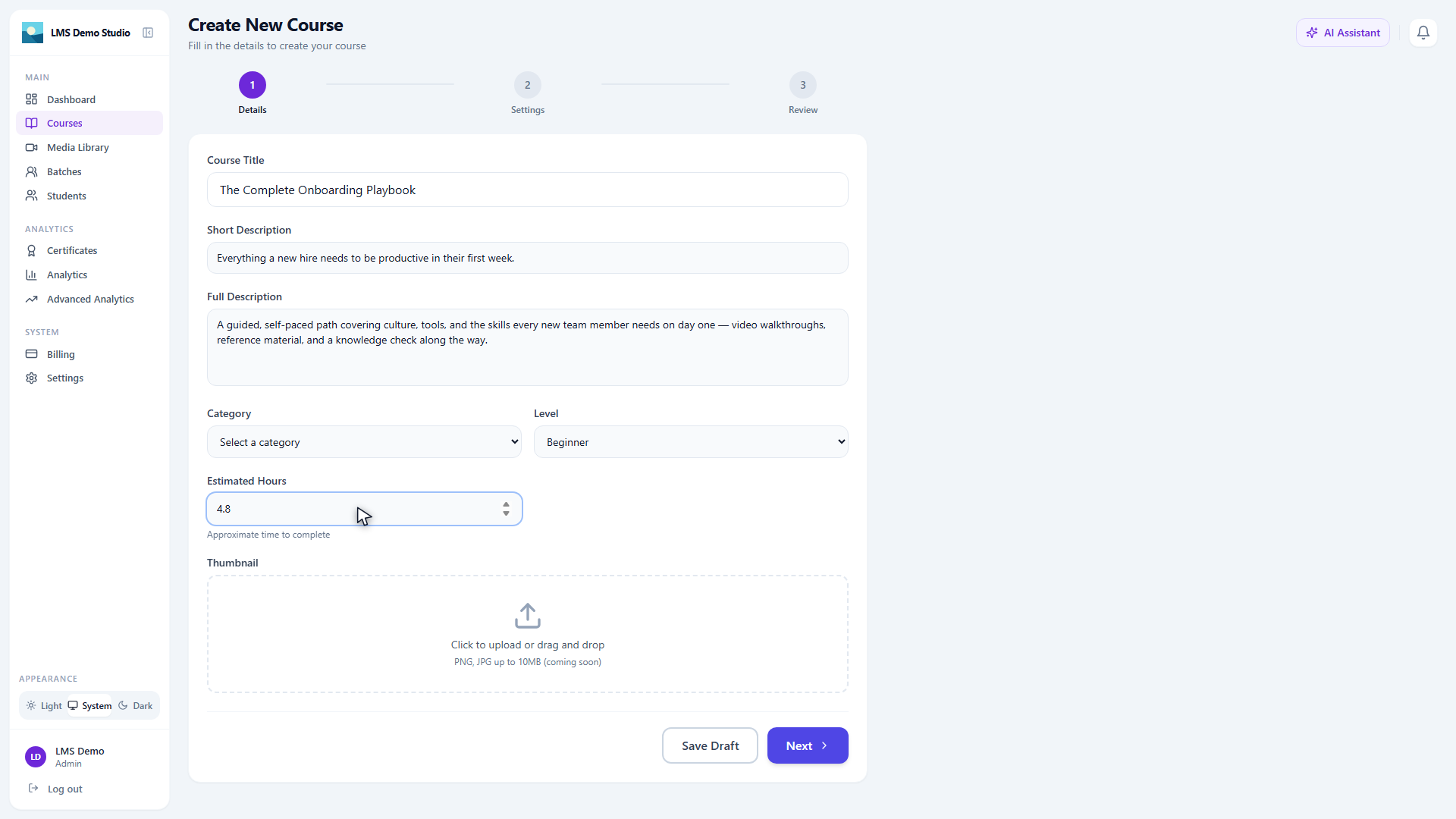
- Go to Courses in the sidebar
- Click Create Course (top right)
- A 3-step wizard opens: Details → Settings → Review
Step 1: Details
- Course Title
- Short Description — shown on course cards
- Full Description — appears on the course detail page
- Category — select from your configured categories (set up under Settings → Categories)
- Level — Beginner, Intermediate, or Advanced
- Estimated Hours — approximate time to complete, shown on the course card
- Thumbnail — upload a JPG/PNG/WebP (max 10 MB) or paste an image URL directly
Step 2: Settings
- Course Type — Training, Compliance, Onboarding, Certification, or Professional Development
- Delivery Type — Self-Paced, Instructor-Led, Blended, or Cohort-Based
- Access Type — Open (all members), Restricted (specific groups), Assigned Only, or By Invitation
- Enrollment Type — Self-Enrollment, Requires Approval, Admin Only, or Automatic (rule-based)
- Catalog Visibility — Visible in Catalog, Hidden (enrolled users only), or Unlisted (direct link only)
- Feature this course — highlights it in the catalog
- Mandatory/required training toggle — when on, reveals:
- Due Days — days to complete after enrollment
- Recertification Days — days until recertification is needed
- Passing Score (%) and Max Attempts (leave empty for unlimited)
- Scheduling (only shown when Delivery Type is Instructor-Led or Cohort-Based): Course Start/End Date, Enrollment Opens/Closes, Max Enrollment
Step 3: Review, then create
Review the summary and confirm. The course is created in Draft status.
Change a thumbnail later
Open the course's Edit page and update it under Course Thumbnail — same upload-or-URL choice as at creation.
Add modules
Modules are the chapters of your course. Inside a course:
- Click Add Module
- Enter the module title
- Drag modules to reorder them using the drag handle (⠿) on the left
Add lessons
Inside a module, click Add Lesson. Each lesson has:
- Title
- Type — Video, Document (PDF), Text, Quiz, or Assignment
- Free preview toggle — if enabled, non-enrolled visitors can view this lesson
See Lessons → for detailed content types.
Publish a course
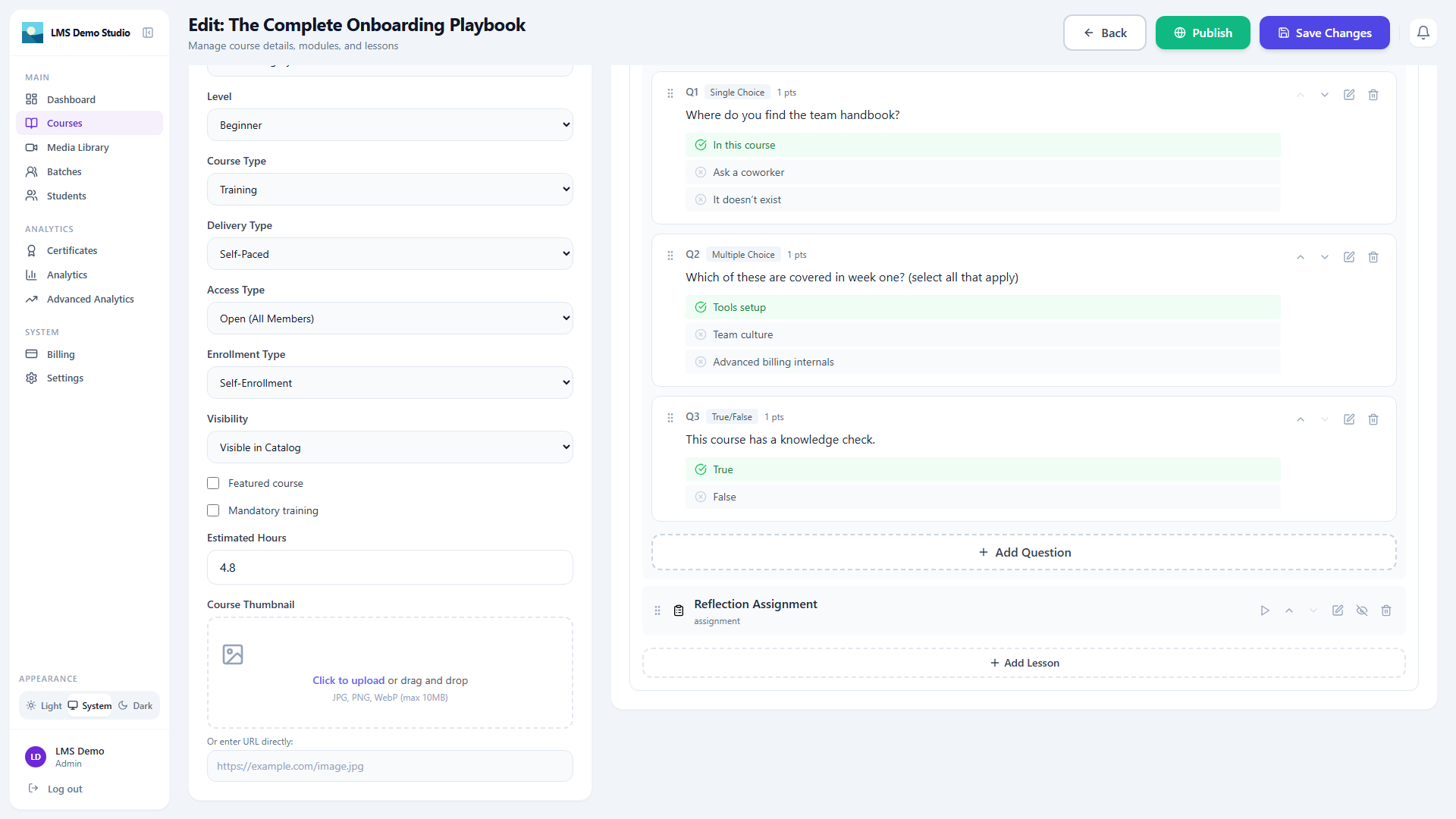
When your content is ready:
- Open the course
- Click Publish
The platform verifies that your course has:
- A title and description
- At least one lesson
- An estimated duration set
If any are missing, the checklist will show what's needed before publishing.
Once published, enrolled students can access the course immediately. Any edits you make to published courses are visible to students right away — there is no separate "staging" step.
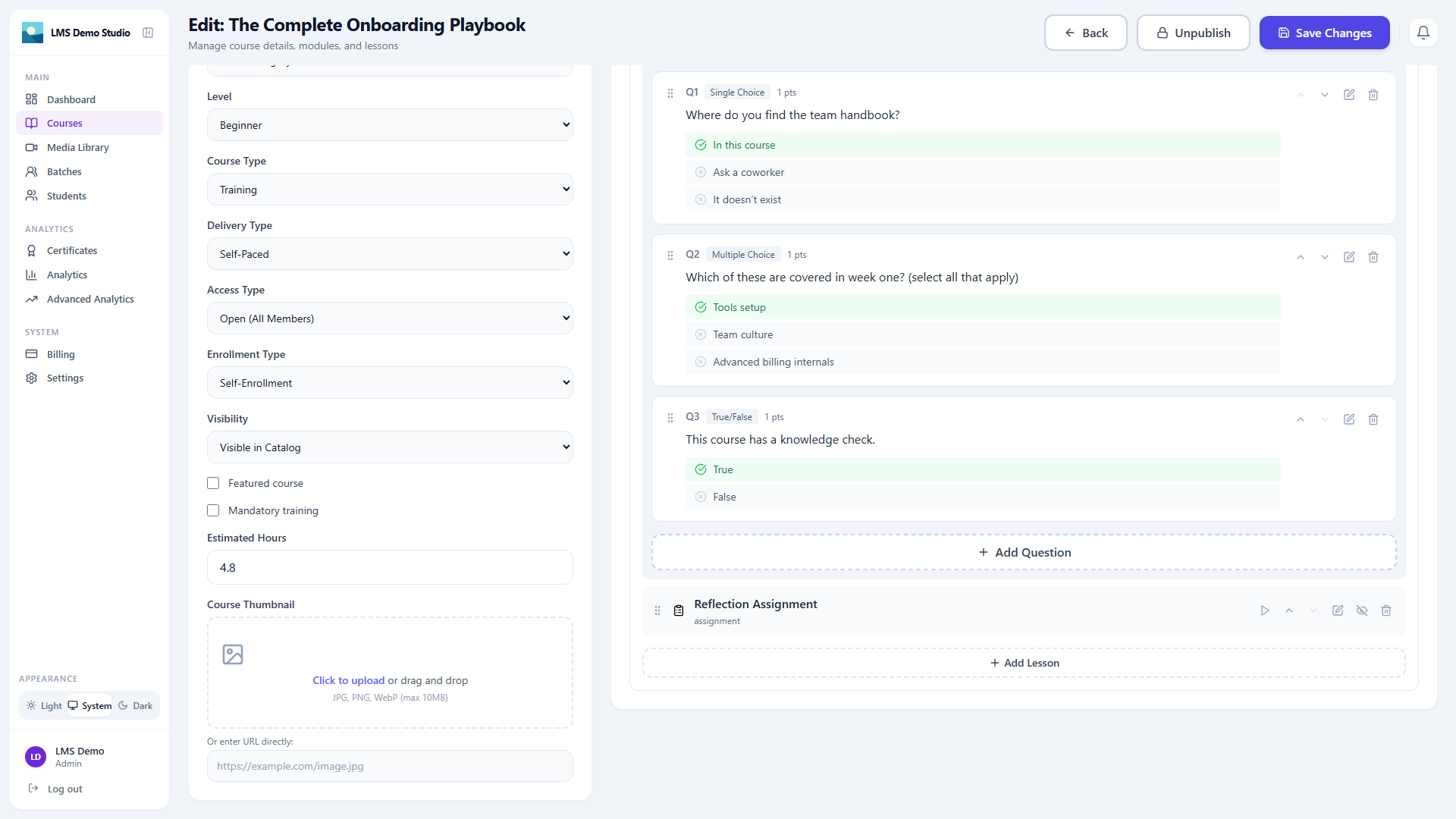
Course statuses
| Status | Meaning |
|---|---|
| Draft | Only visible to admins and instructors; students cannot access it |
| Published | Visible and accessible to enrolled students |
| Archived | Hidden from the catalog; existing enrollments can still access it |
Archive and restore
Archiving hides a course from the catalog without deleting any student progress or enrollments.
- Archive: Open the course → click the menu (⋮) → Archive
- Restore: In the Courses list, filter by Archived → open the course → Restore
Delete a course
Deletion is permanent. Before deleting, the platform shows a warning with the current enrollment count.
Deleting a course removes all lessons, student progress, quiz attempts, and certificates associated with it. This cannot be undone.
Bulk actions
On the Courses list, check multiple courses to access bulk actions:
- Publish All — publishes all selected draft courses
- Archive All — archives all selected courses
- Restore All — restores all selected archived courses
Categories
Categories help students browse the catalog. Configure them under Settings → Categories.
Assign a category when creating or editing a course.