Course Discussions
Each course has a Forum tab where students and instructors can discuss lessons, ask questions, and share answers.
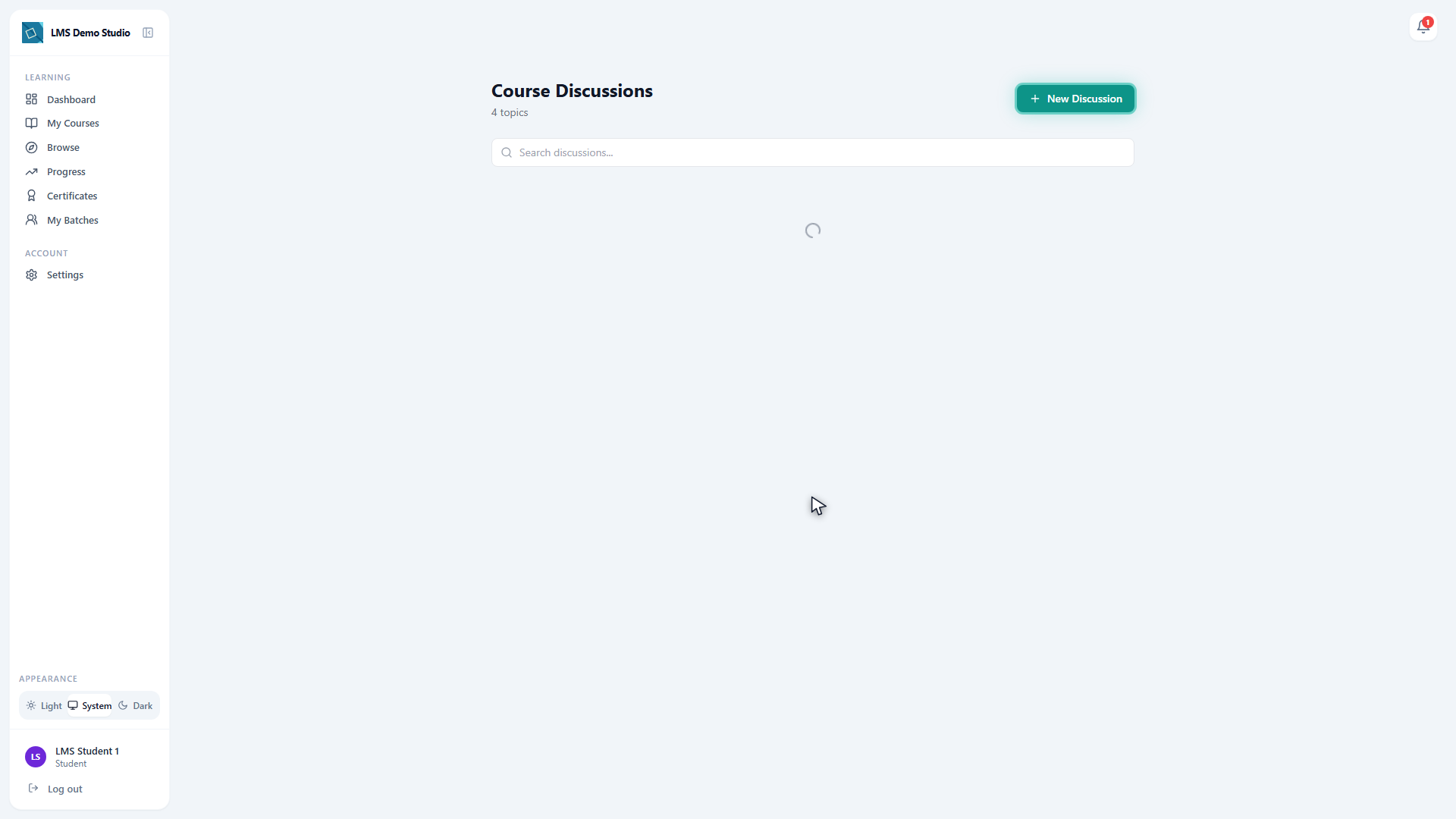
Finding the forum
- Open a course from your dashboard
- Click the Forum tab at the top of the course page
The forum shows all discussion topics for that course, with the most recently active topics at the top.
Starting a new topic
- Go to the Forum tab in the course
- Click New Discussion
- Enter a title — be specific so others can find it (e.g. "Question about Module 3 - CORS headers" rather than "Question")
- Write your message in the body — basic formatting (bold, code blocks, lists) is supported
- Click Post
Your topic appears in the forum immediately.
Replying to a topic
- Open a topic
- Read through the existing replies
- Type your reply in the text box at the bottom
- Click Reply
Upvoting
Click the upvote arrow on any topic or reply to indicate it is helpful. Upvote counts are visible to everyone. You can remove your upvote by clicking again.
Accepted answers
A reply marked with a green checkmark has been accepted as the best answer. Accepted answers appear at the top of the reply list, before other replies.
An accepted answer is marked by either:
- The instructor or course admin, or
- The original poster (the student who started the topic)
If you started a topic and someone's reply solved your problem, click Accept Answer on that reply.
Pinned and locked topics
A topic can carry a pin or lock indicator — a pinned icon marks it as important, a lock icon means it's closed to new replies. There's no self-service way to pin or lock a topic yet; if you need one changed, contact your admin directly.
If you see a post that violates your organization's policies, contact your admin directly — the platform does not have a public moderation team or an in-app reporting flow yet.